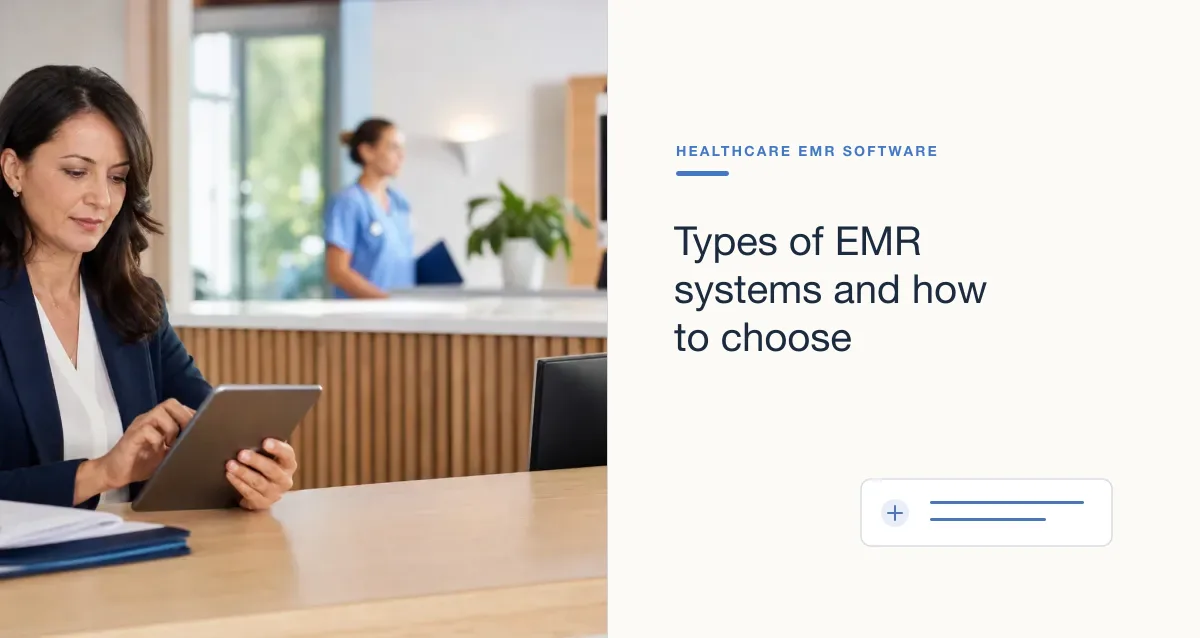
A tablet EMR system is usually an electronic health record (EHR) or electronic medical record (EMR) application accessed on a tablet—not a separate kind of medical record. Tablets can make it easier for authorized staff to review or enter information at the point of care, but whether they help depends on the software, device, connectivity, clinical task, and privacy safeguards.
Before buying devices, confirm that the EHR vendor supports the tablet’s operating system and the workflows your practice needs. A mobile-friendly screen is not necessarily equivalent to the full desktop product.
Where tablet access may fit
- Reviewing a patient’s chart, medication list, allergies, or prior results during an encounter.
- Entering notes, orders, or structured information when the application supports the needed functions.
- Using a device for rooming, intake, or patient education with an appropriate privacy setup.
- Supporting clinicians who move between rooms or locations and need approved mobile access.
These are possible use cases, not guaranteed benefits. Compare the tablet workflow with the current desktop or paper process and identify which tasks become easier—and which become slower or more error-prone.
Advantages and limitations
Potential advantages
- Mobility: Staff may be able to access information near the point of care rather than returning to a fixed workstation.
- Flexible interaction: Touch, stylus, keyboard, or camera functions may support particular workflows if the software and policies allow them.
- Shared review: A clinician may use the display to review selected information or instructions with a patient.
Potential limitations
- Small-screen constraints: Dense notes, multi-window tasks, or complex order entry may be harder than on a larger display.
- Connectivity dependence: Some features may not work when the network or service is unavailable. Do not assume offline access exists; confirm what is cached and how it is secured.
- Device management: Lost devices, shared logins, unpatched software, or unapproved apps can increase security and privacy risks.
- Workflow disruption: Poorly positioned devices or awkward navigation can create distractions and reduce patient interaction.
- Compatibility and peripherals: Printers, signature pads, barcode readers, cameras, and other equipment may not work as expected on every device or platform.
How to choose a tablet for EMR use
- Start with the clinical task. List the exact workflows—chart review, documentation, ordering, intake, or patient education—and test each on the device.
- Verify EHR support. Ask the vendor which operating systems, browsers, applications, and device models are supported, and whether features differ from the desktop version.
- Check usability in the real setting. Test screen size, brightness, battery life, camera or scanning needs, keyboard/stylus use, disinfecting procedures, and how the device is held or mounted.
- Plan connectivity and downtime. Confirm network coverage in every relevant room, what happens during an outage, and how work is safely resumed and reconciled.
- Set device-management requirements. Define encryption, screen locks, automatic timeouts, patching, approved apps, remote lock or wipe, account provisioning, and incident reporting.
- Review privacy in shared spaces. Consider screen visibility, patient-facing use, device storage, cleaning, and how staff prevent leaving a logged-in device unattended.
- Pilot before scaling. Test with representative users and visit types, collect usability and safety feedback, and resolve issues before purchasing for the entire organization.
Protecting health information on tablets
HIPAA does not mandate a particular tablet brand or technology. Covered entities and business associates must assess risks to electronic protected health information (ePHI) and use reasonable and appropriate administrative, physical, and technical safeguards. If a cloud provider or other vendor handles ePHI on behalf of a covered entity, determine whether a business associate agreement is required.
Practical controls may include device encryption, managed user accounts, strong authentication, automatic locking, approved applications, operating-system updates, remote lock or wipe, secure connectivity, and a process for reporting lost devices. Select controls through your organization’s security risk analysis and policies; no single checklist guarantees compliance.